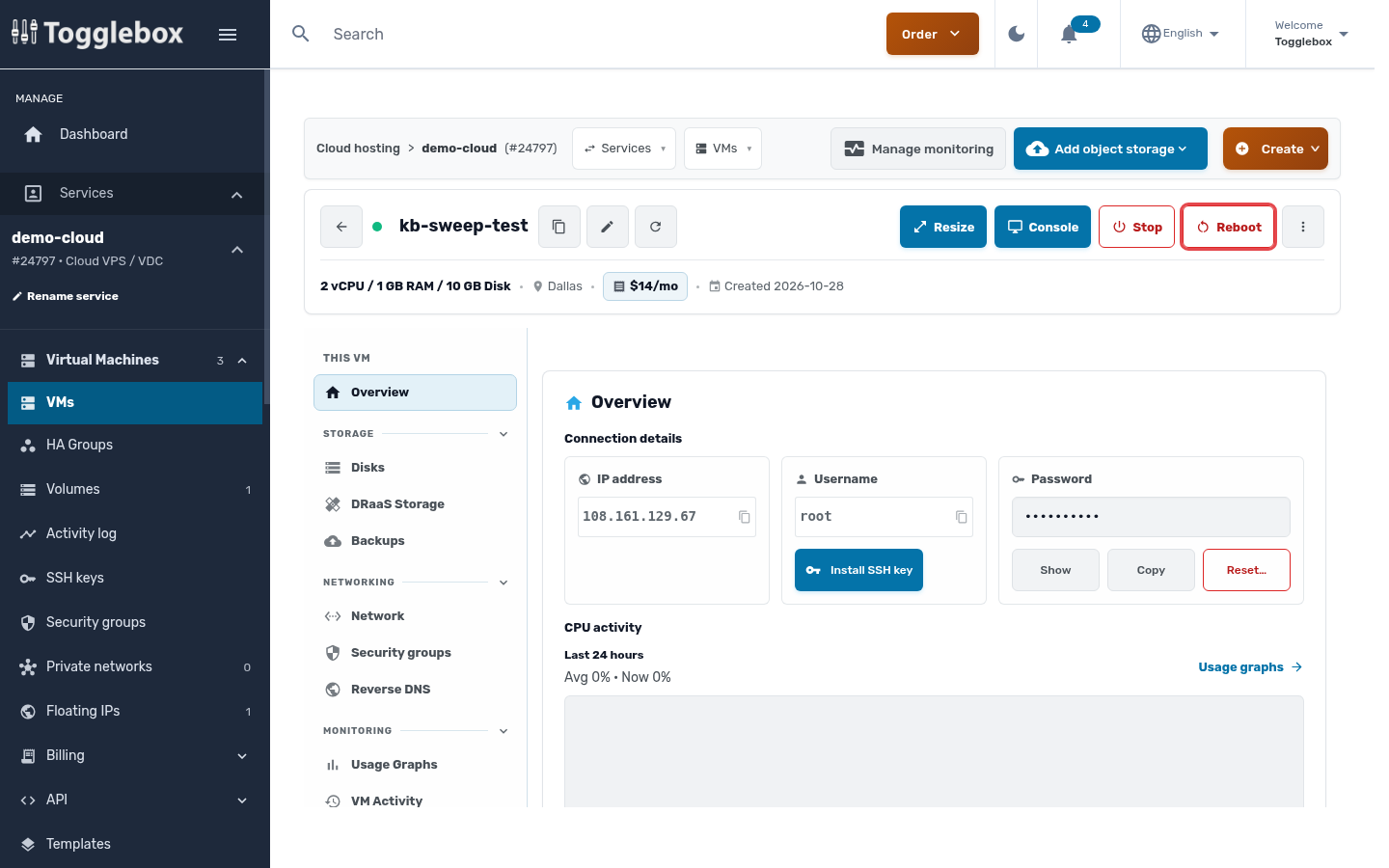
A reboot interrupts connections and applications. Save work first if the VM still responds.
- Open your Cloud VPS service, then select the affected VM.
- Click Console. Check for an operating-system update, disk repair, or error. Record the error before restarting. If an update or repair is progressing, let it finish.
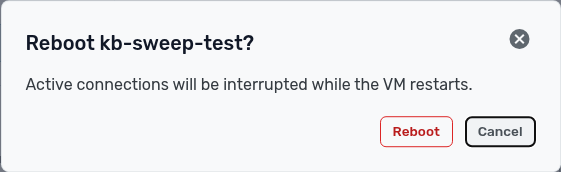
- Click Reboot. Read the interruption warning, then click Reboot in the confirmation.
- Wait for the operation to finish. Check Console again, then test your application and SSH or Remote Desktop.
If the VM still does not respond, open a support ticket with the VM ID, the time and timezone, the console error, and the entry from Activity log. Wait for each power action to finish before starting another.