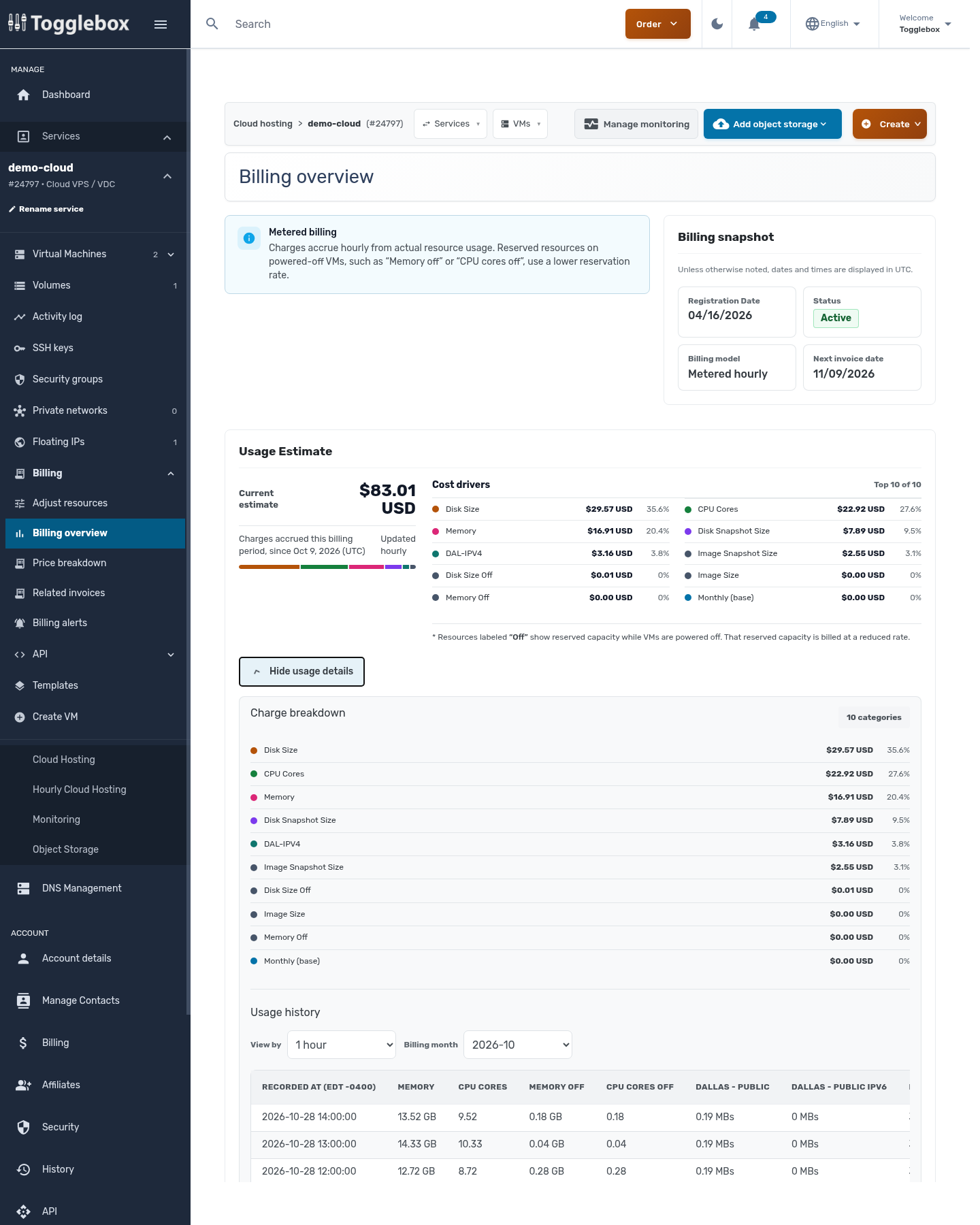
A stopped VM still reserves resources. Stopping it does not cancel the service or remove its storage.
- Open your Cloud VPS service and choose Billing overview. Check the billing model and usage period.
- Click Show usage details. Review Charge breakdown for running and stopped resources. Stopped CPU and memory have reservation rates; their charges do not necessarily fall to zero.
- Review disks, backups, unattached Volumes, and reserved public IP addresses as well as the VM. Resources you keep can still incur charges.
- If you no longer need the service, export the data you need and follow Cancel an hourly cloud or Cancel a service.
For a recurring resource plan, releasing a VM's allocation leaves your subscribed allowance unchanged. Ask billing to explain unfamiliar entries using the invoice number and usage period.
Check the usage behind your invoice.