Upload only your public key. Keep the private key on your own computer and protect it with a passphrase.
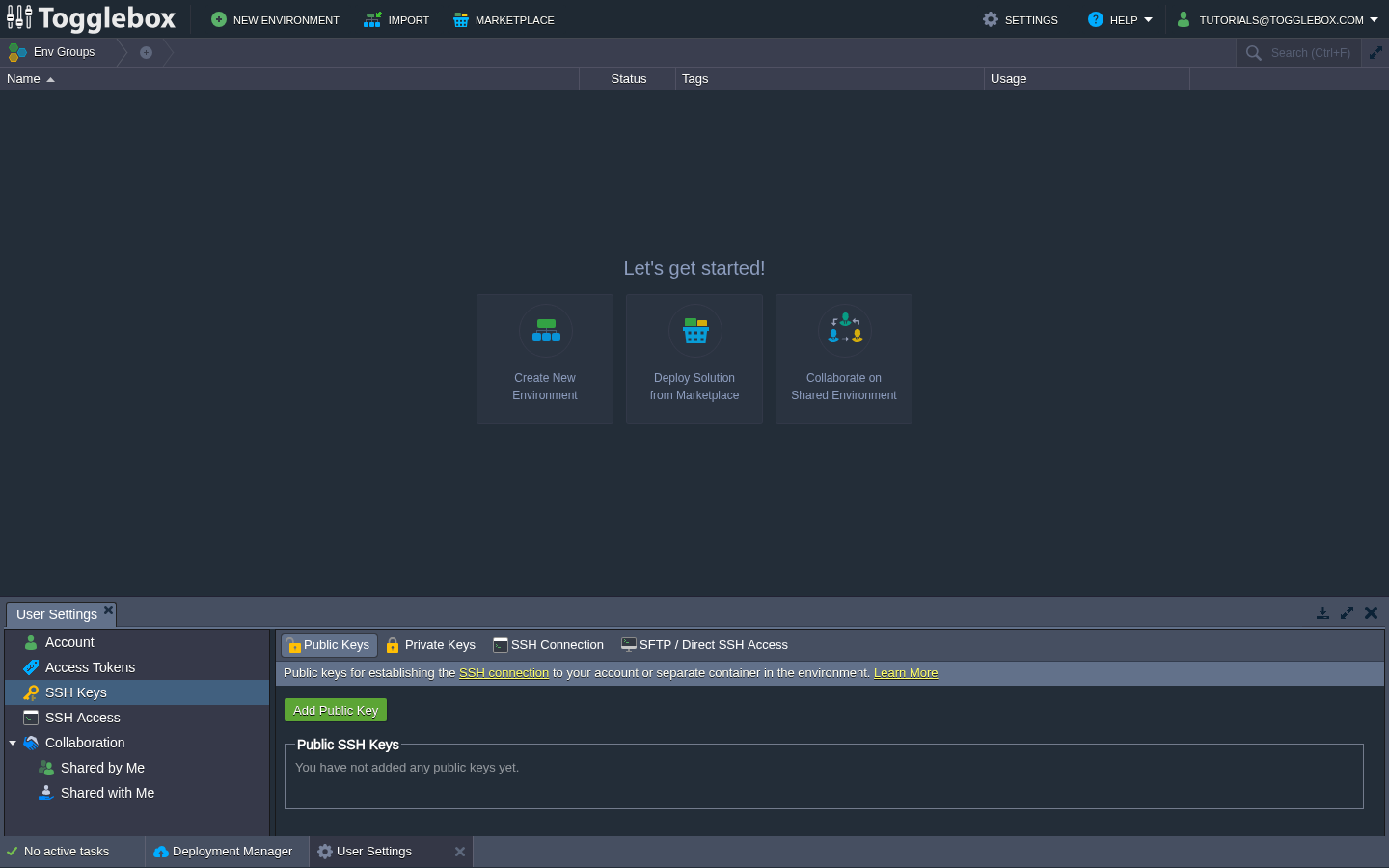
- Sign in at App Hosting. Open SETTINGS, then SSH Keys and Public Keys.
- Click Add Public Key. Enter a title, paste the complete public key, and click Add. Do not paste the private key.
- Open SSH Access, then SSH Connection. Copy the command under SSH Gate into your SSH client. Use the private key that matches the public key you uploaded.
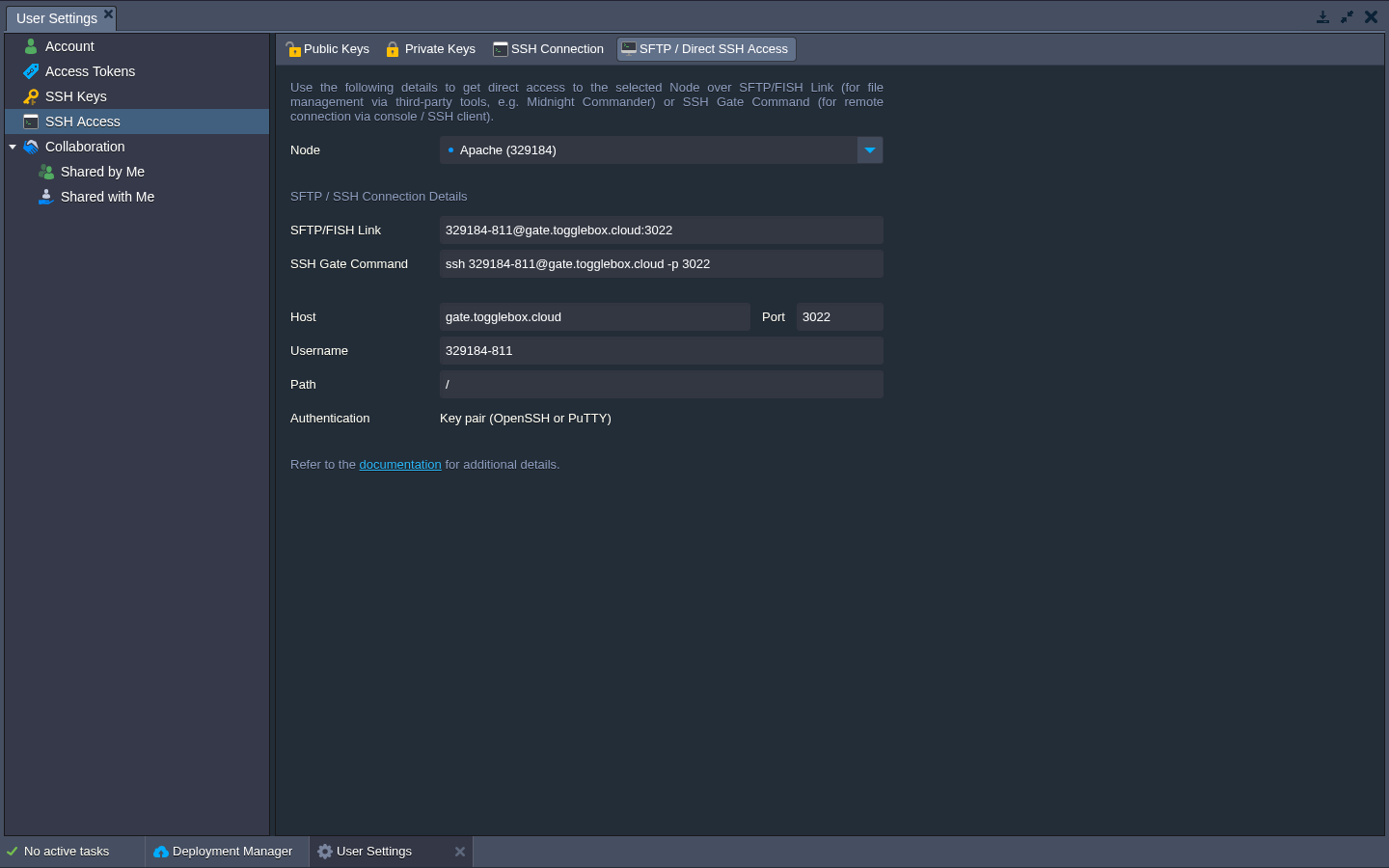
- To connect directly to one node or transfer files, open SFTP / Direct SSH Access and choose the Node. Copy its Host, Port, and Username into your client. Select key-pair authentication.
- Test the connection and confirm the environment and node. Review public keys regularly and remove keys you no longer use.
Use the node-specific username shown by the dashboard for SFTP. The account-level gateway command opens an environment selection menu. Keys for private repositories are separate from these account access keys.