You can grow a disk while the VM is running. Disks can't shrink.
- Open the VM and click Disks in the left menu.
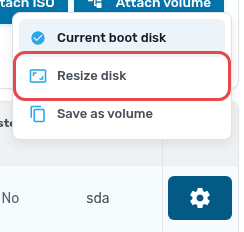
- Click the settings button on the disk and choose Resize disk.
- Set the new size. The price for the new size and your remaining quota are shown below the slider.
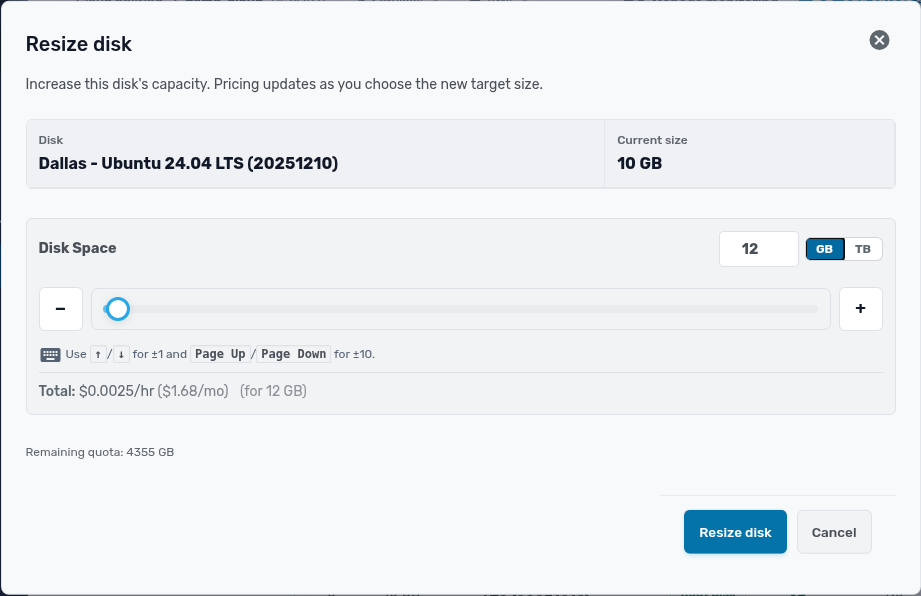
- Click Resize disk and confirm.
Grow the filesystem
On VMs built from our templates, the contextualization service grows the root filesystem for you within a few seconds. Check with df -h.
For a data disk, or a VM without the contextualization service, grow the partition and filesystem yourself. On Linux, assuming the disk is /dev/sda and the filesystem is on partition 1:
growpart /dev/sda 1
resize2fs /dev/sda1      # ext4
xfs_growfs /             # XFS: use the mount point instead
Use lsblk to find the right disk and partition first. On Windows, open Disk Management, right-click the volume and choose Extend Volume.