An ISO attaches as a virtual CD-ROM. Use one to install an operating system yourself, load drivers, or repair a VM that won't boot.
- Open the VM, click Disks in the left menu, then Attach ISO.
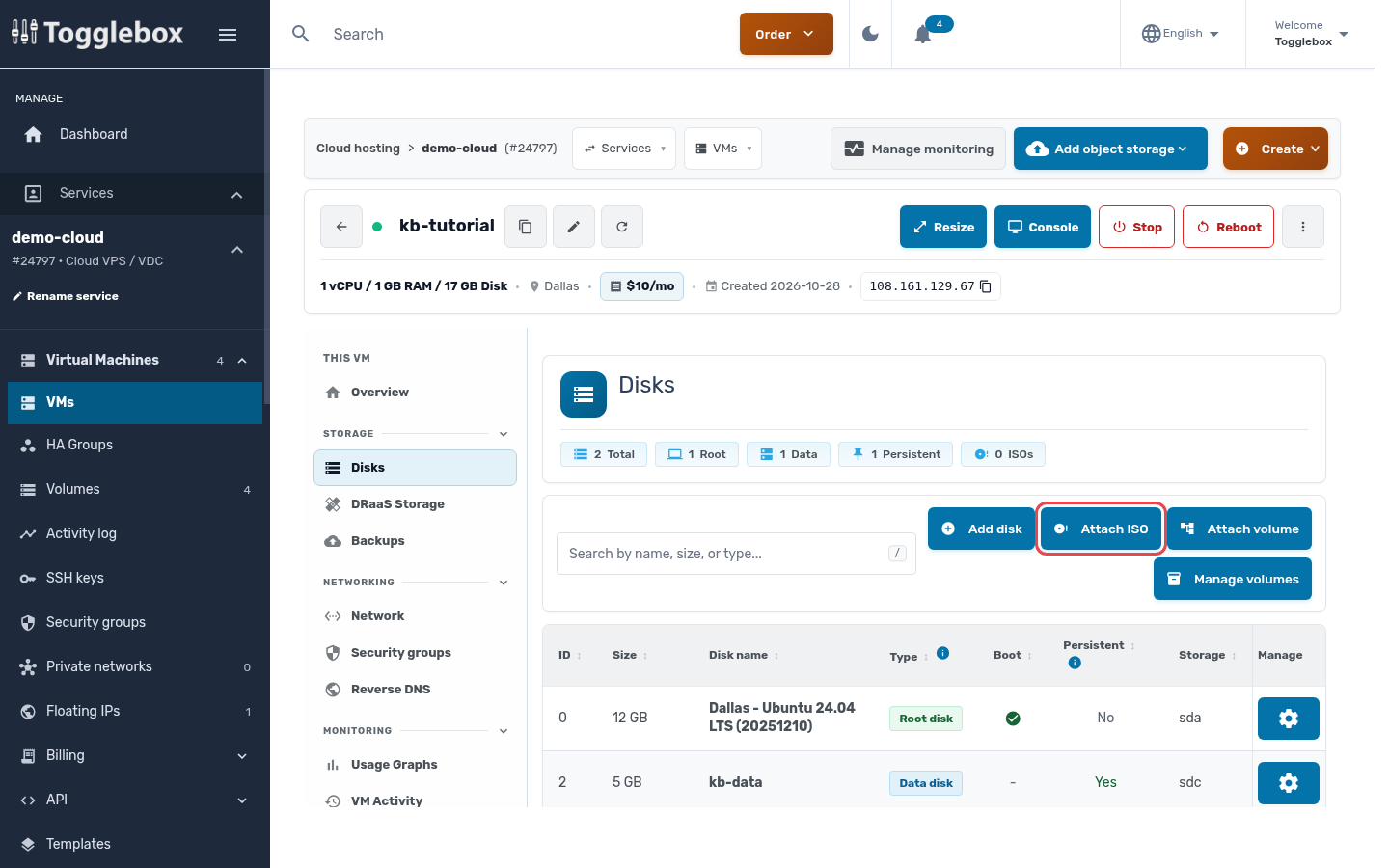
- Choose an ISO from Select ISO. The list has our system ISOs (Windows installers, VirtIO drivers, a rescue image, the contextualization packages) and any ISO volumes you have added.
- Tick Set as boot media for the next VM boot only if you want the VM to start from the ISO.
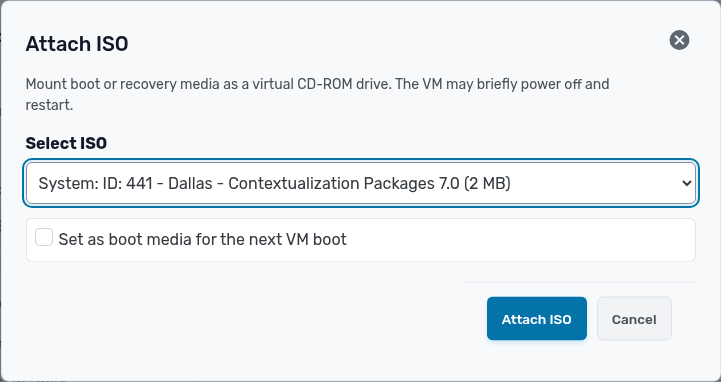
- Click Attach ISO. The VM shuts down briefly, the ISO is attached, and the VM starts again.
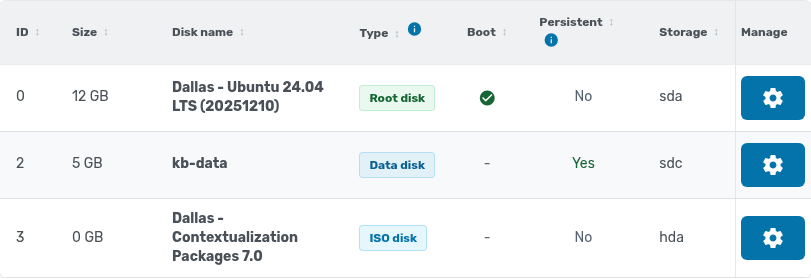
The ISO now shows in the disk list as an ISO disk. To remove it, click its settings button and choose Detach ISO.
Use your own ISO
- In the service menu, open Volumes and click Create volume.
- Set Volume type to ISO image, choose the datastore in the same data center as your VM, and pick Import from URL.
- Paste a direct download link to the ISO and click Create volume. It appears in the Select ISO list once the download finishes.
To repair a broken Linux system, Rescue Mode (under More actions) is often quicker: it boots a rescue system and gives you its root password.