Saving a disk as a volume copies it into your volume library. You can then attach the copy to another VM or keep it as a spare.
- Open the VM and click Disks in the left menu.
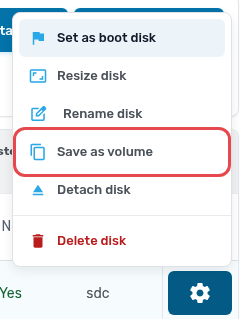
- Click the settings button on the disk and choose Save as volume.
- Enter a Volume name. Leave Volume type on auto-detect and Persistent on Yes unless you have a reason to change them.
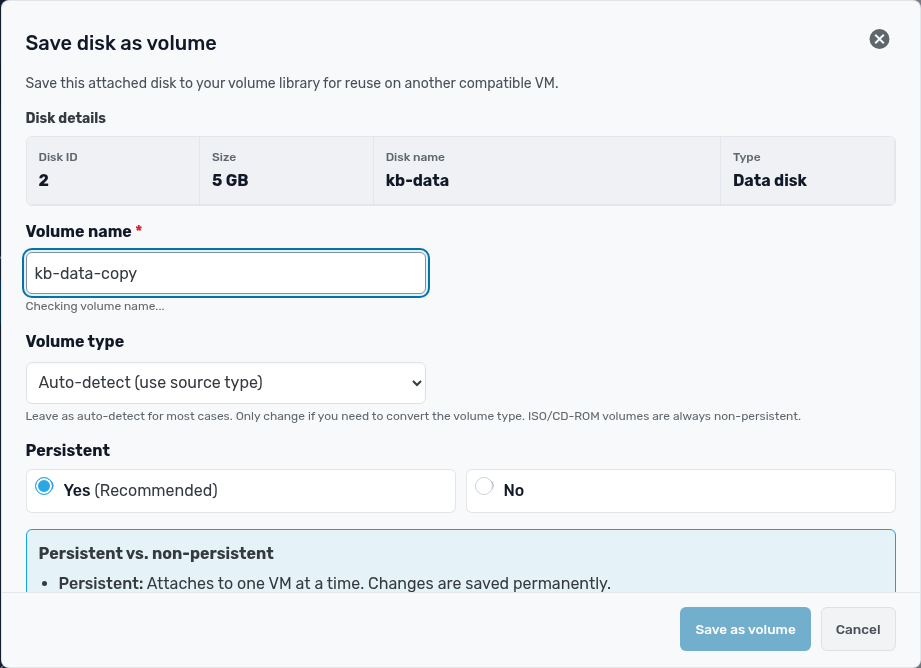
- Click Save as volume. The copy appears under Volumes in the service menu.
For a consistent copy of a busy disk, such as a database, stop the service using it or power off the VM first.
Copy a volume
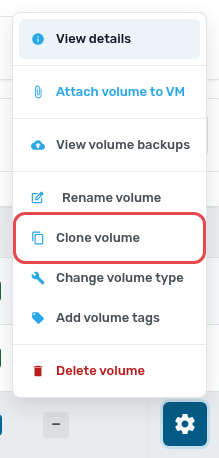
To copy a volume that is already in your library, open Volumes, click the settings button on it, and choose Clone volume.