Entering Upgrade Mode powers the VM off and starts it again. Save your work first. Restore points are billed while they are held. Rolling back discards changes made after the restore points were created.
Upgrade Mode creates a restore point for every disk before you make changes inside the VM. You still perform the operating system upgrade yourself.
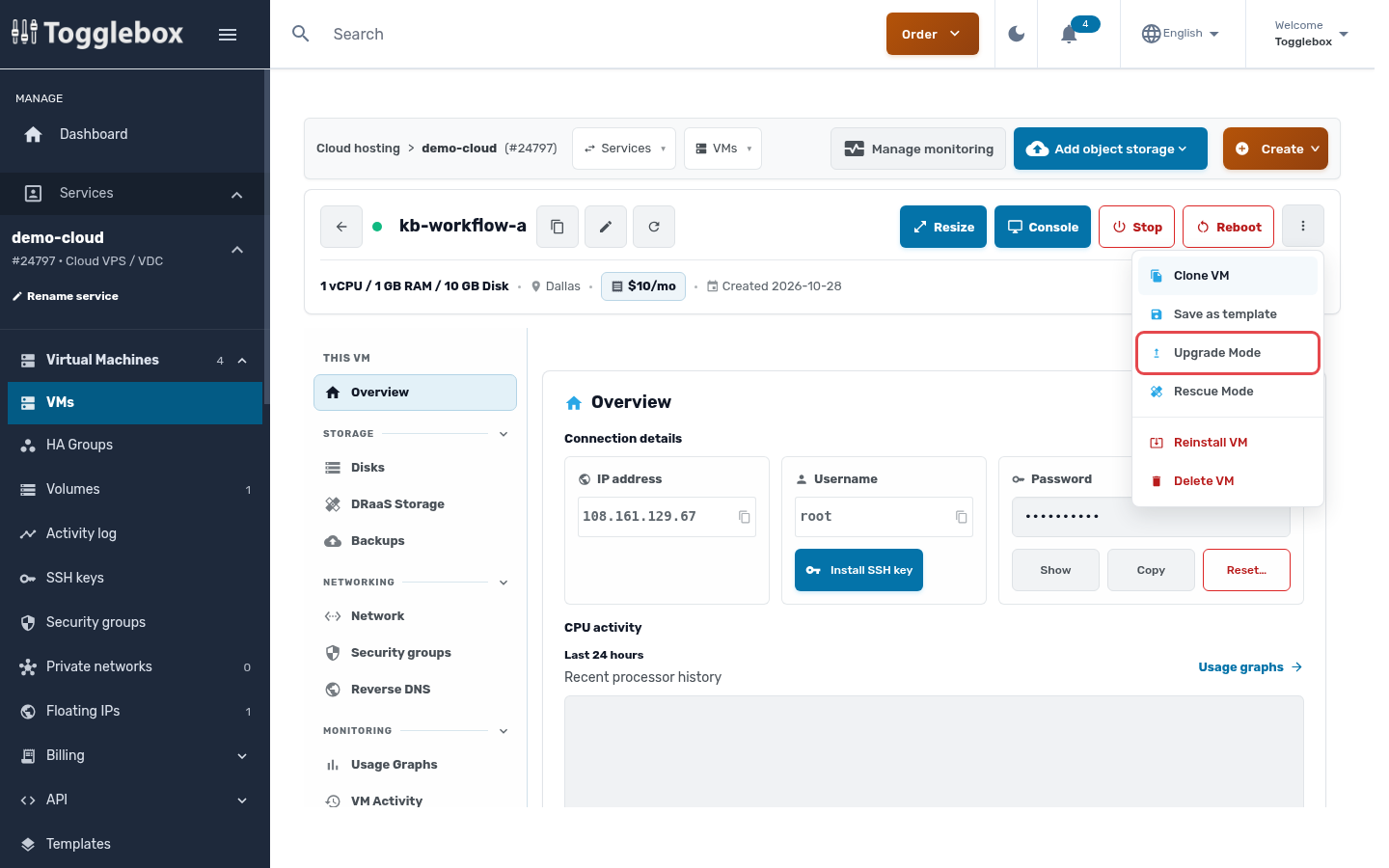
- Open the VM, open the three-dot menu at the top, and choose Upgrade Mode.
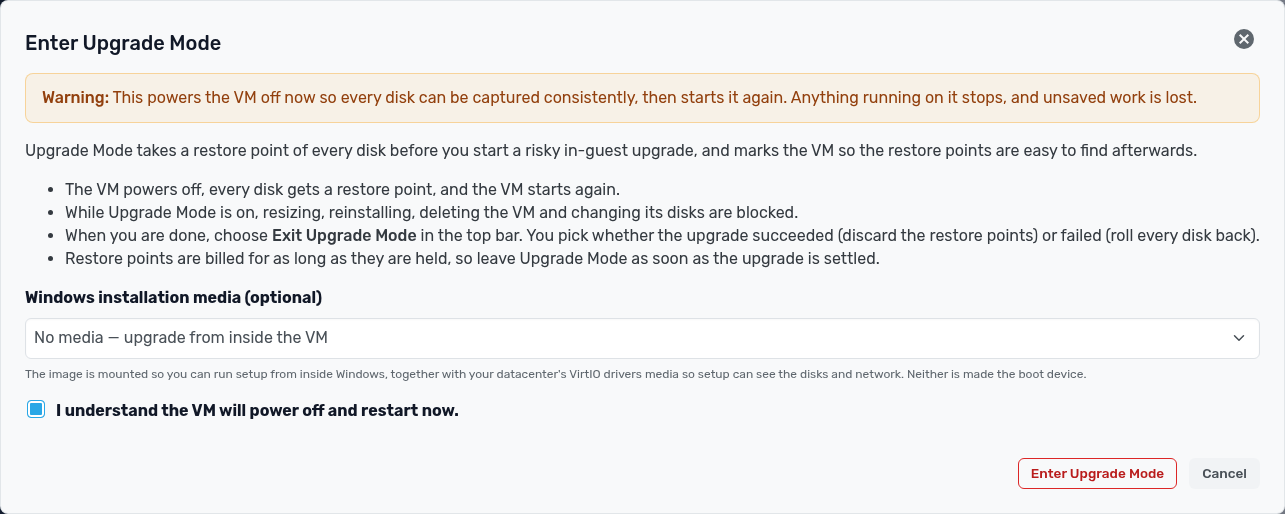
- For an upgrade inside the existing OS, leave the media selector at its default. For a Windows upgrade from installation media, select the required image under Windows installation media (optional). The installation and driver images are mounted without changing the boot device.
- Select I understand the VM will power off and restart now. Then click Enter Upgrade Mode and wait for the operation to finish.
- Perform the upgrade inside the VM and test your applications. Resizing, reinstalling, deleting the VM and changing its disks are blocked while Upgrade Mode is active.
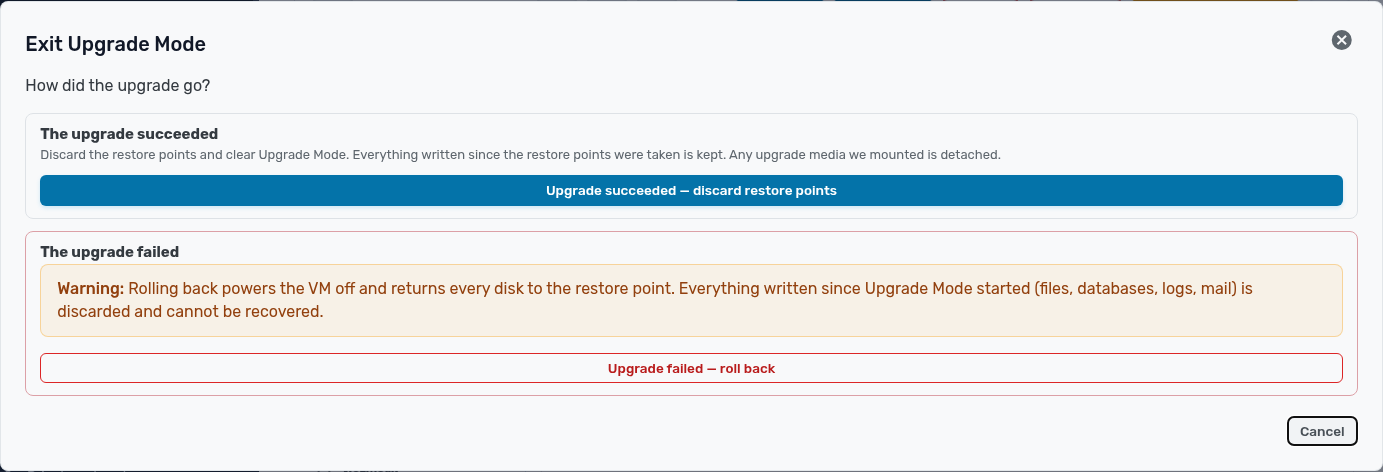
- Choose Exit Upgrade Mode. Select Upgrade succeeded — discard restore points to keep the upgraded system, or Upgrade failed — roll back to restore every disk to its earlier state. Rollback powers the VM off and starts it again.
Validate applications before discarding the restore points. Leave Upgrade Mode once you have decided whether to keep or roll back the upgrade.