Keep the console open while changing access rules so you can recover if you block your SSH or Remote Desktop connection.
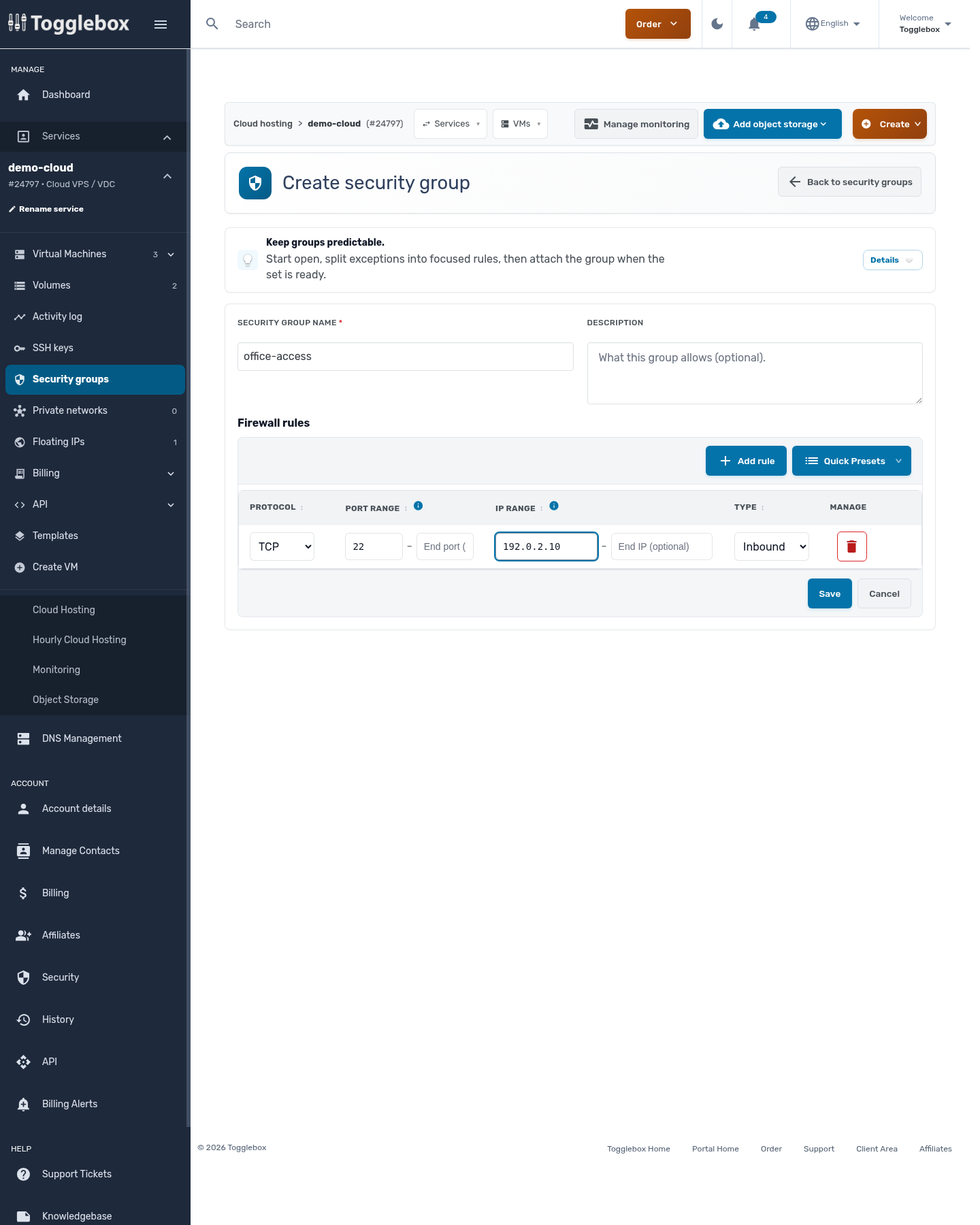
- Open the service-level Security groups page and click Create security group. Enter a SECURITY GROUP NAME and a description of its purpose.
- In Firewall rules, choose the PROTOCOL, PORT RANGE, IP RANGE, and TYPE. Use Inbound for connections to the VM. Enter the application port and the permitted source IP range. Keep management access limited to addresses you control.
- Use Add rule for other required traffic. Include the outbound access your application needs, then click Save.
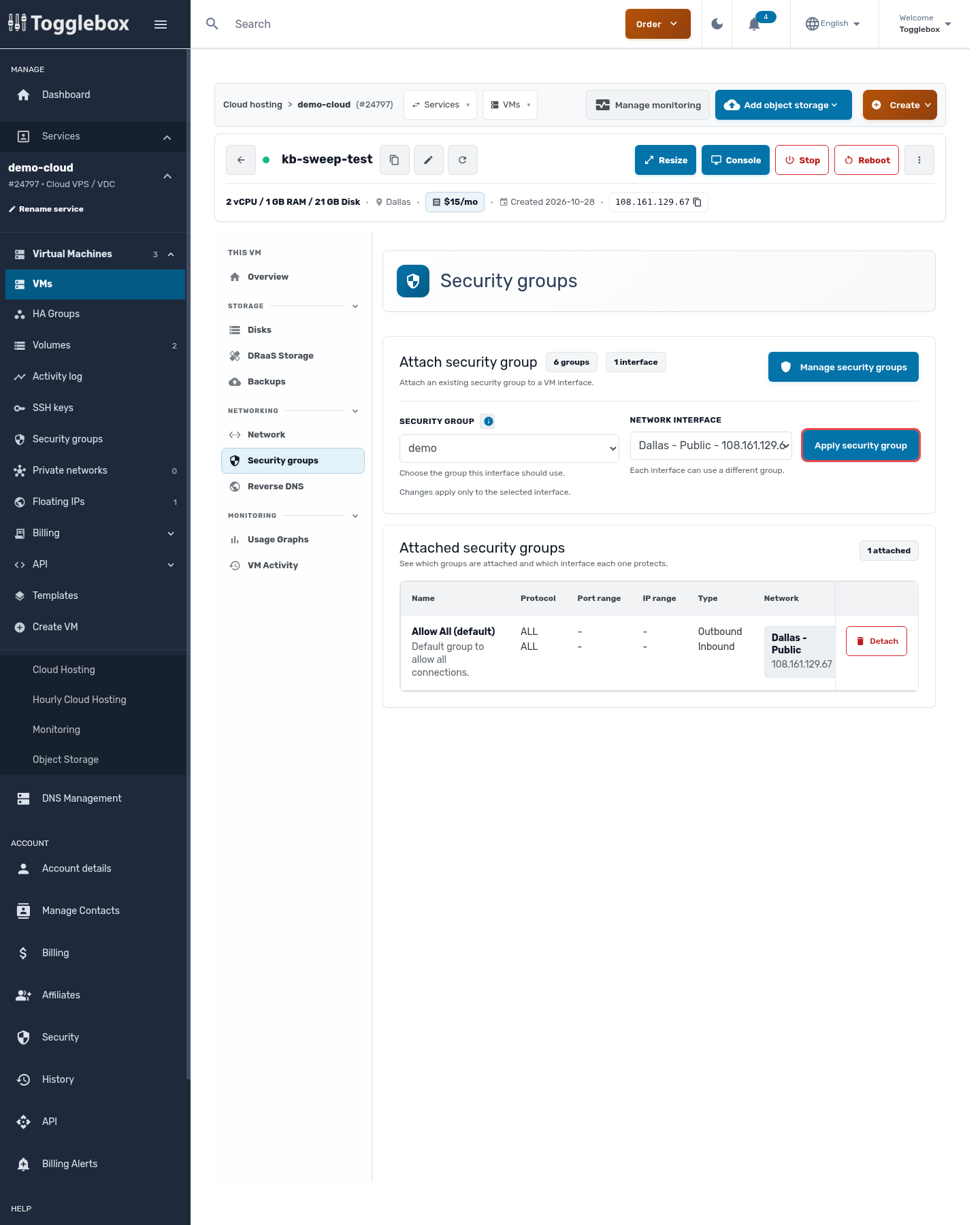
- Open the VM's Security groups page. Select SECURITY GROUP and NETWORK INTERFACE, then click Apply security group. Check every attached group. An allow-all group still permits traffic that your new group leaves out.
- Check the guest firewall separately. Test a new connection from an allowed source and a connection from a source that should be denied before closing your recovery session.
If a change fails, save the error and check which groups are attached before testing access again.