New VMs are created inside an existing Cloud VPS service. Pricing updates on the right as you change options, and you are billed hourly.
- Open your Cloud VPS service and click Create > VM, or Create VM in the service menu.
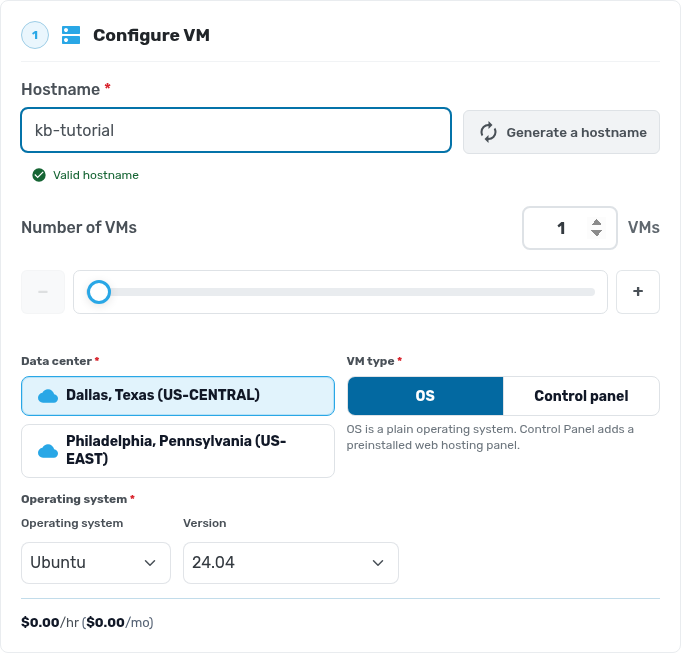
- Under Configure VM, enter a Hostname (or click Generate a hostname), choose how many VMs to create, the Data center, and the operating system and version. Pick Control panel under VM type if you want cPanel or another panel preinstalled.
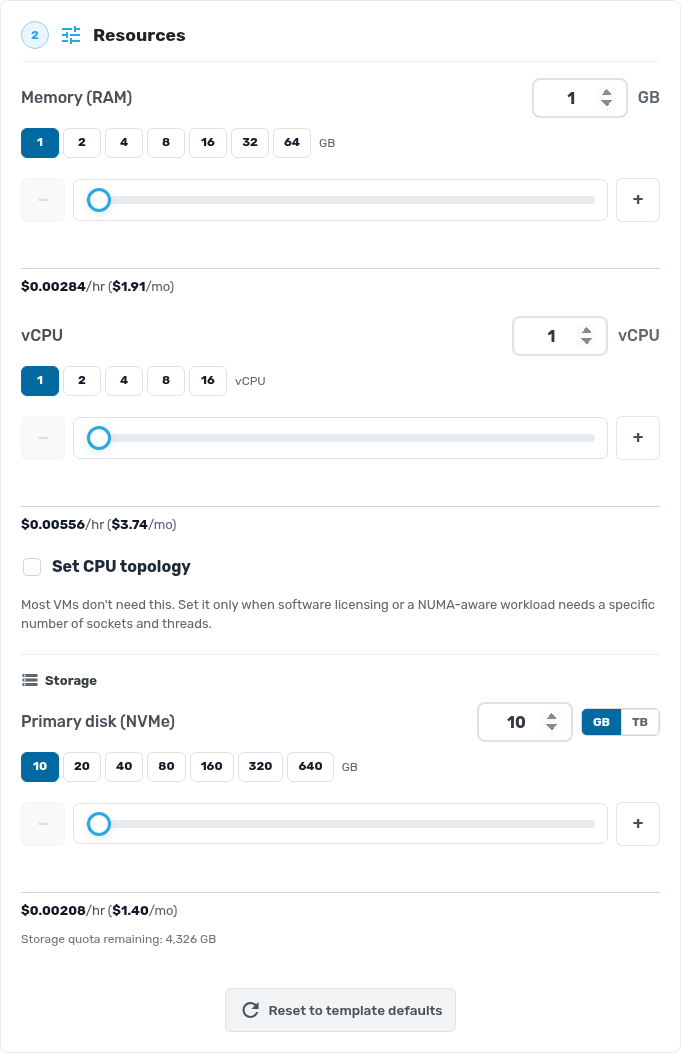
- Under Resources, set Memory (RAM), vCPU and the Primary disk (NVMe) size. You can change CPU and RAM later, and grow the disk later, but a disk can't shrink.
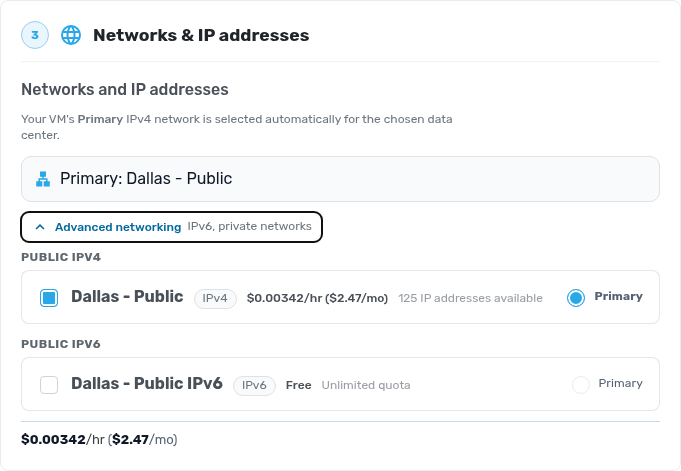
- Under Networks & IP addresses, the VM gets a public IPv4 address in the chosen data center. Open Advanced networking to add IPv6 or a private network at the same time.
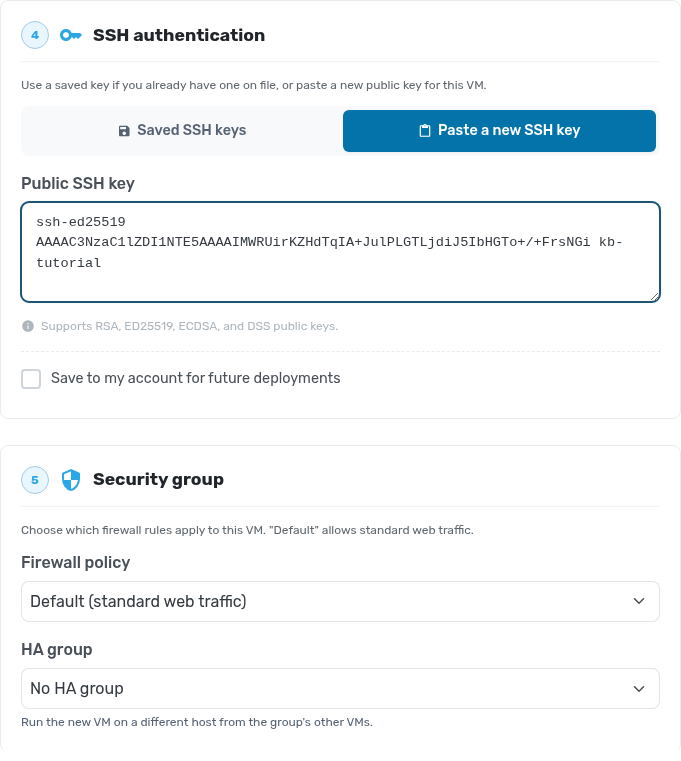
- Under SSH authentication, choose a saved key or paste a public key. Tick Save to my account for future deployments to reuse it. Under Security group, choose the firewall policy, and optionally an HA group so the VM runs on a different host from the group's other VMs.
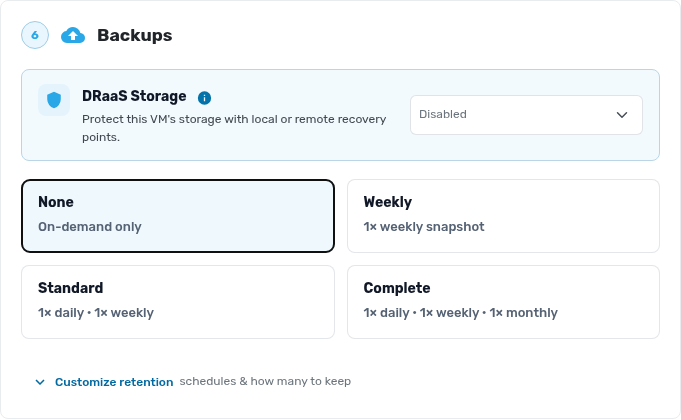
- Under Backups, pick a backup plan. None still lets you take backups by hand. DRaaS Storage adds local or remote recovery points.
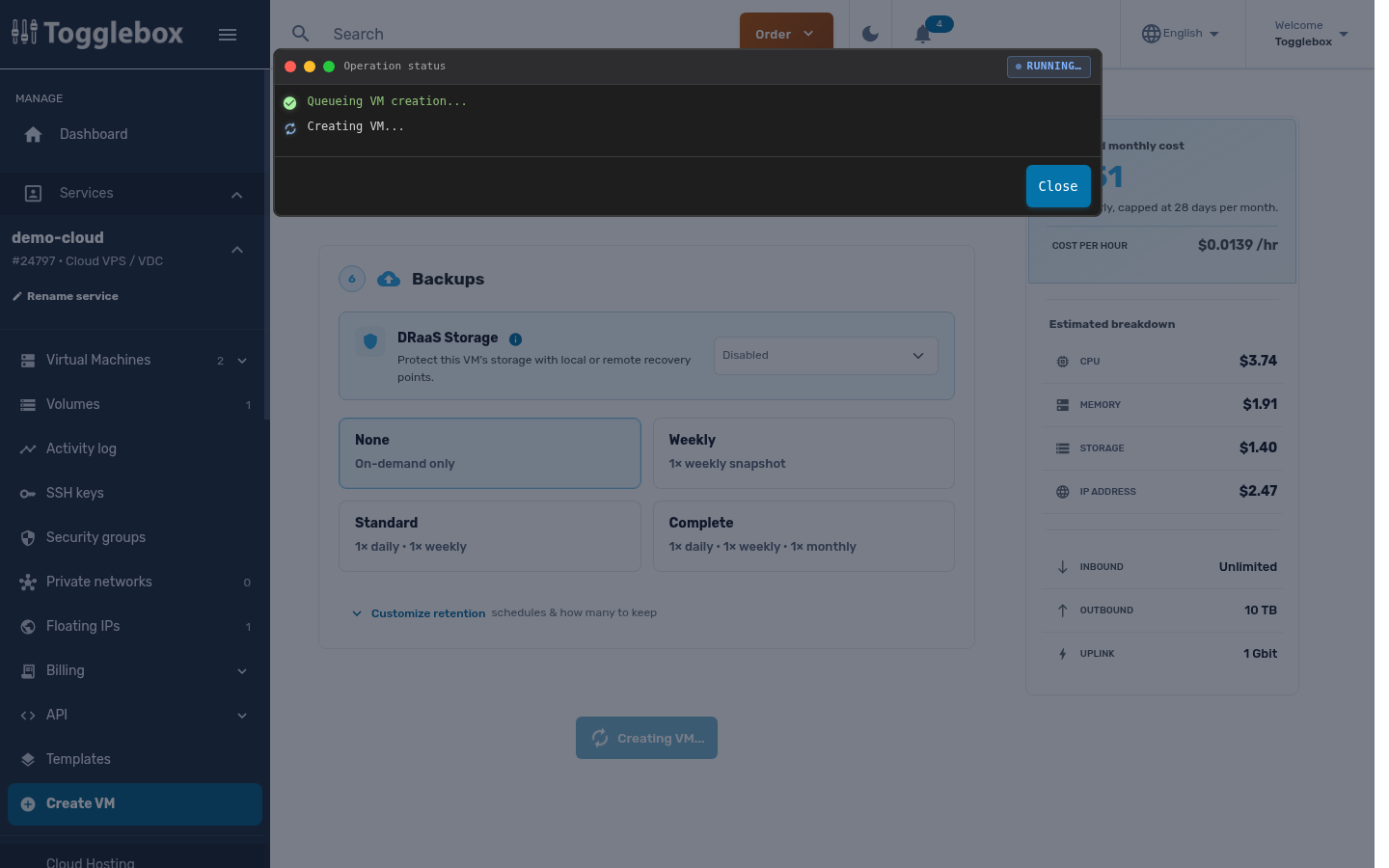
- Check the estimate and click Create VM. The operation status window shows progress, and the VM appears in your VM list when it is ready, usually within a minute or two.
The root password is on the VM's Overview page under Connection details.