Both VMs temporarily lose network connectivity during a swap. Prepare the destination application and arrange a maintenance window first.
A NIC swap exchanges the interfaces on a shared network between two VMs, including their IP addresses and ordinary aliases.
- Open the source VM and select Network.
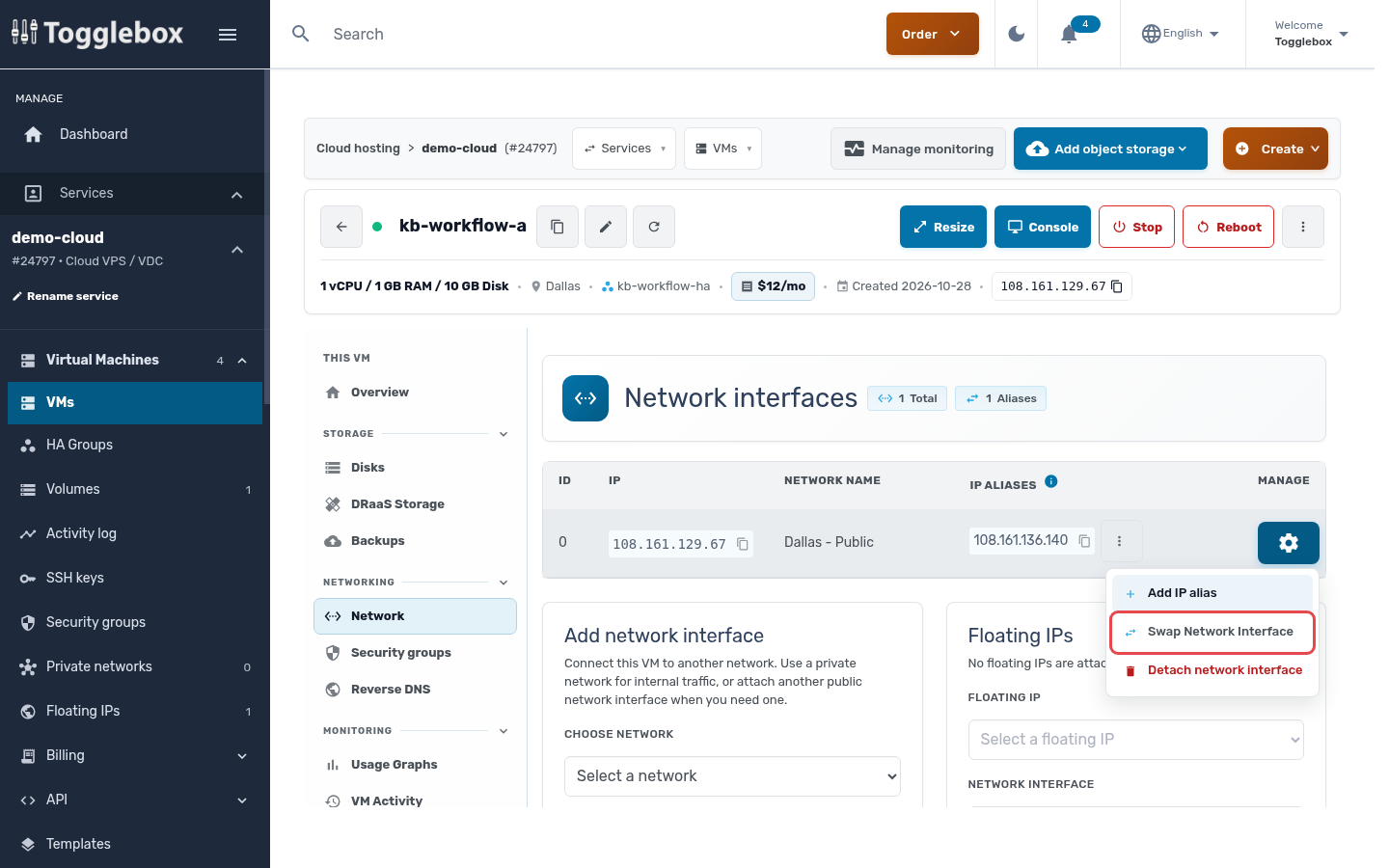
- Open the management menu for the interface you want to swap. Choose Swap Network Interface.
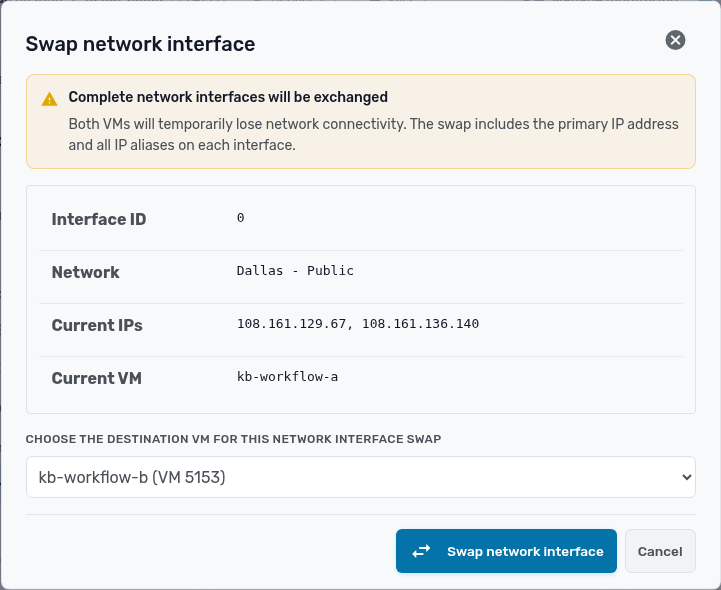
- Select the destination VM. It must have an interface on the same network. Click Swap network interface to review the exchange.
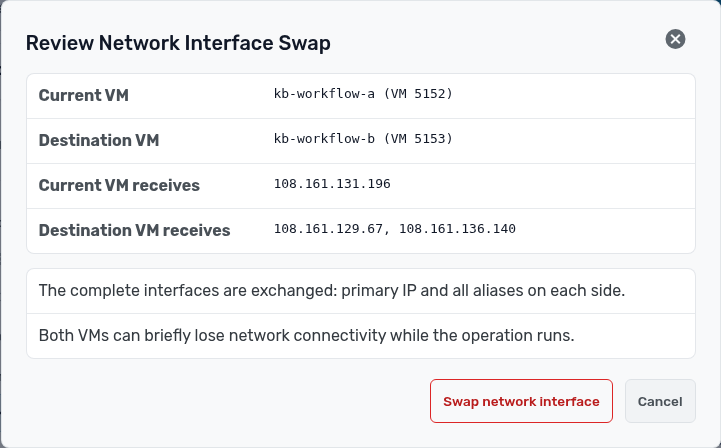
- Check Current VM receives and Destination VM receives. Click Swap network interface only when both applications are ready.
- Wait for the operation to finish. Check the Network page on both VMs and test access to each application at its resulting address.
Automatic guest network configuration requires the contextualization service. Check any manually configured guest network settings as part of the change. A swap can report success while a guest retains its previous IP configuration. If connectivity does not return, open Console and check the guest network settings. Contact support with both VM IDs and the swap entry from Activity log; do not repeat the swap to try to repair guest networking.