Connections using the alias are interrupted when it moves. Prepare the destination application before confirming.
Move an ordinary extra IP address from one VM to another without swapping their primary interfaces. Floating IPs use the separate Floating IPs page.
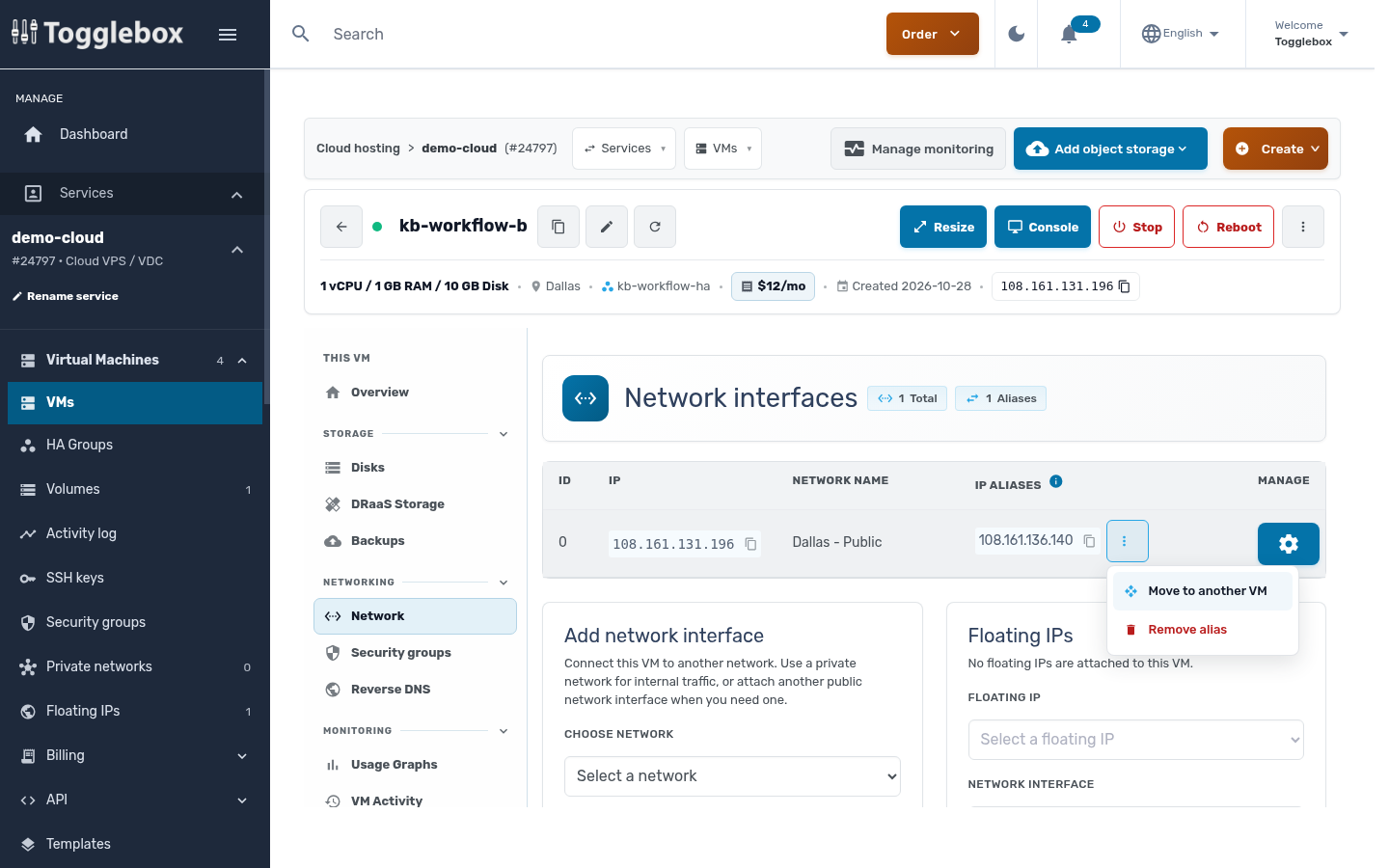
- Open the source VM and select Network. Find the ordinary IP alias you want to move.
- Open the three-dot menu beside the ordinary alias and choose Move to another VM.
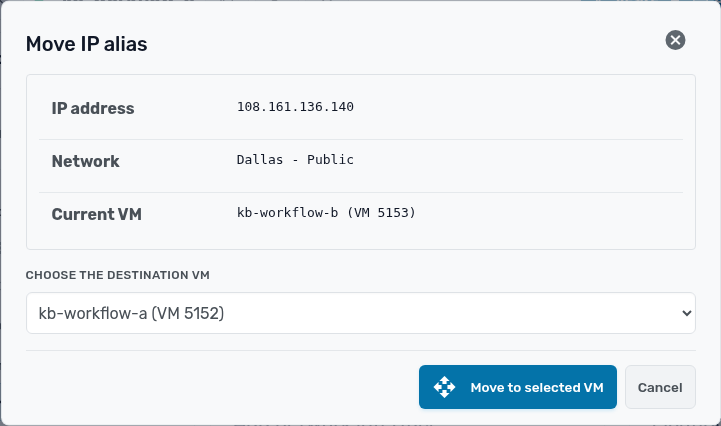
- Select the destination VM, which must have an interface on the same network. Click Move to selected VM to review the change.
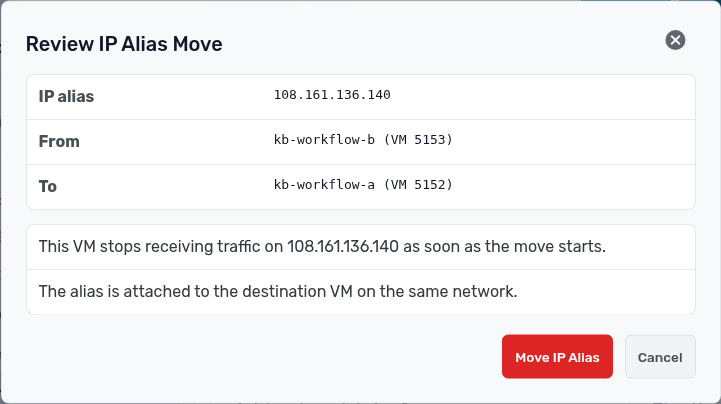
- Check the IP address and both VM names, then click Move IP Alias. Traffic to the alias will go to the destination VM.
- Wait for the operation to finish. Check that the alias appears on the destination VM’s Network page and test the application through that address.
Automatic guest network configuration requires the contextualization service. For manually configured networking, update the guest configuration on both VMs.