Resizing reboots the VM. You don't need to power it off first: the panel stops it, applies the new size and starts it again.
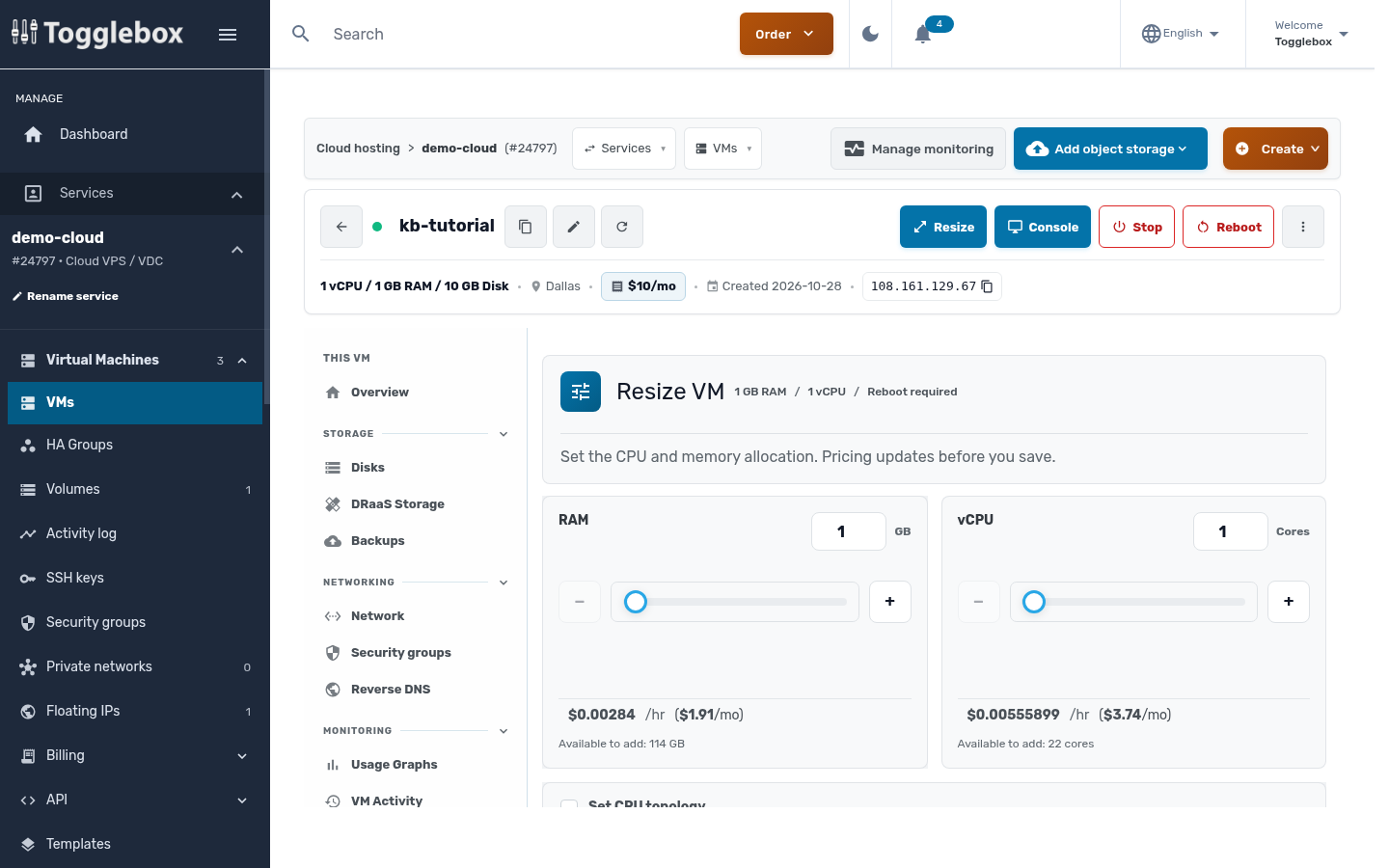
- Open the VM and click Resize at the top.
- Set RAM and vCPU with the sliders or the number boxes. The hourly and monthly totals update as you go. Available to add shows how much is left in your service.
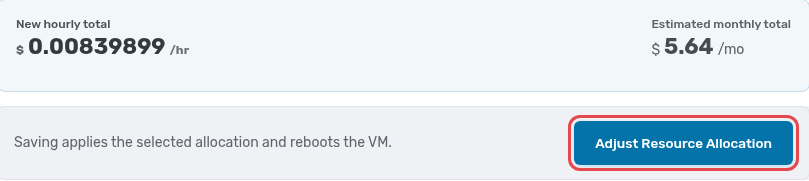
- Click Adjust Resource Allocation and confirm. Expect a short outage while the VM reboots.
Disk size is separate. See Expand a disk.