Moving a disk takes two steps: detach it from one VM, then attach it to the other. Both VMs must be in the same data center.
The OS disk can't be detached. To reuse it on another VM, save it as a volume instead. See Save a disk as a volume.
Detach the disk
- Unmount the disk inside the VM first (or remove it from
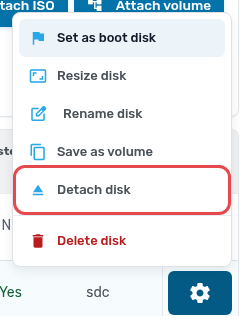
/etc/fstab). The VM keeps running during the detach. - Open the source VM, click Disks, click the settings button on the disk and choose Detach disk.
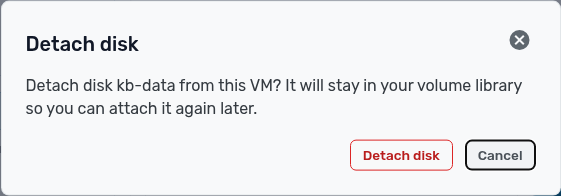
- Confirm. A persistent disk stays in your volume library. A non-persistent disk is destroyed when you detach it, so the panel asks you to type DETACH. Save it as a volume first if you need it.
Attach it to the other VM
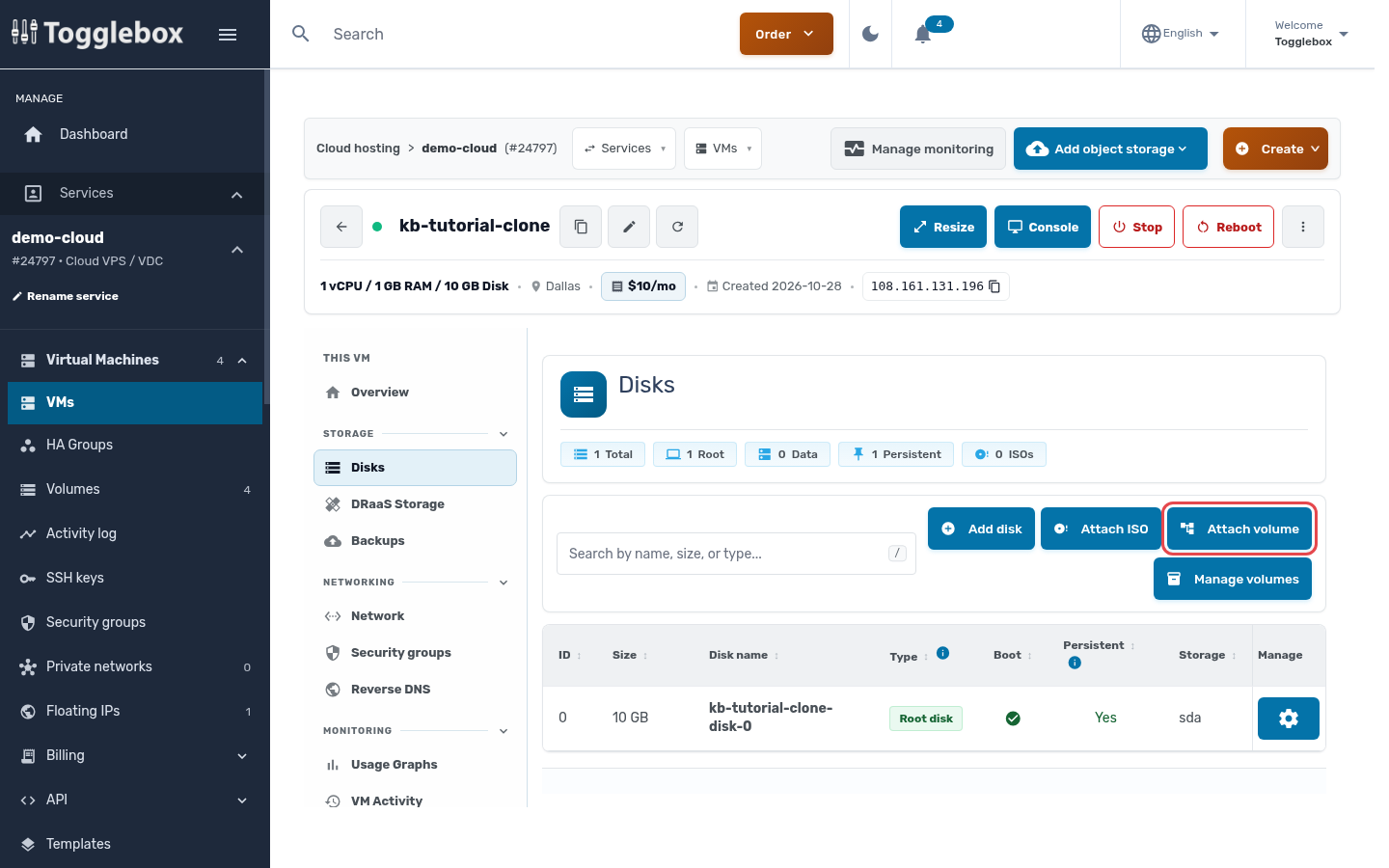
- Open the destination VM, click Disks, then Attach volume.
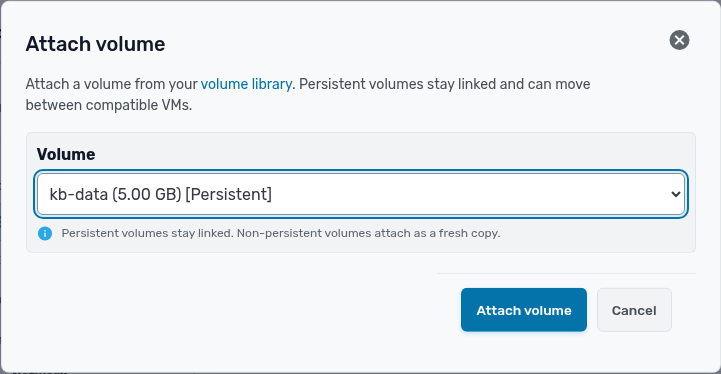
- Choose the volume and click Attach volume.
- Mount the disk inside the VM.
You can also start from Volumes in the service menu: click the settings button on a volume and choose Attach volume to VM.