A VM boots from one device at a time. You choose it per disk or ISO, and it takes effect on the next restart.
Boot from an ISO
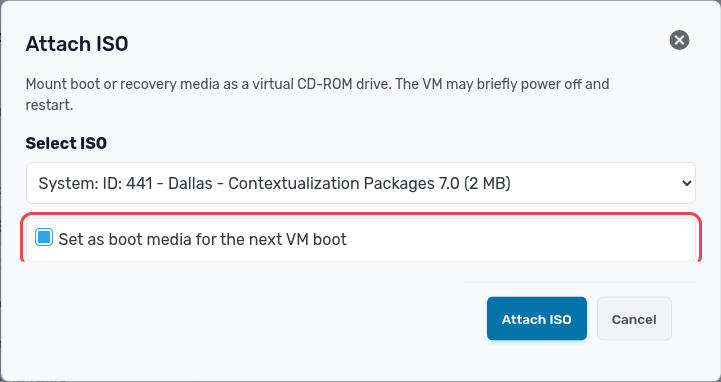
- Attach the ISO and tick Set as boot media for the next VM boot in the same dialog. See Attach an ISO to a VM.
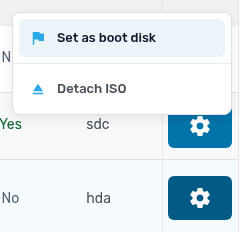
- If the ISO is already attached, open Disks, click the ISO's settings button and choose Set as boot disk.
- Confirm, then click Reboot. Open Console to see the ISO's boot screen.
Boot from the OS disk again
- Open Disks, click the root disk's settings button and choose Set as boot disk.
- Reboot the VM, and detach the ISO if you no longer need it.
The Boot column in the disk list shows which device is the current boot disk.