View CPU, memory, disk and network activity for a VM.
- Open your Cloud VPS service and select the VM from VMs.
- Under the VM’s monitoring menu, click Usage Graphs.
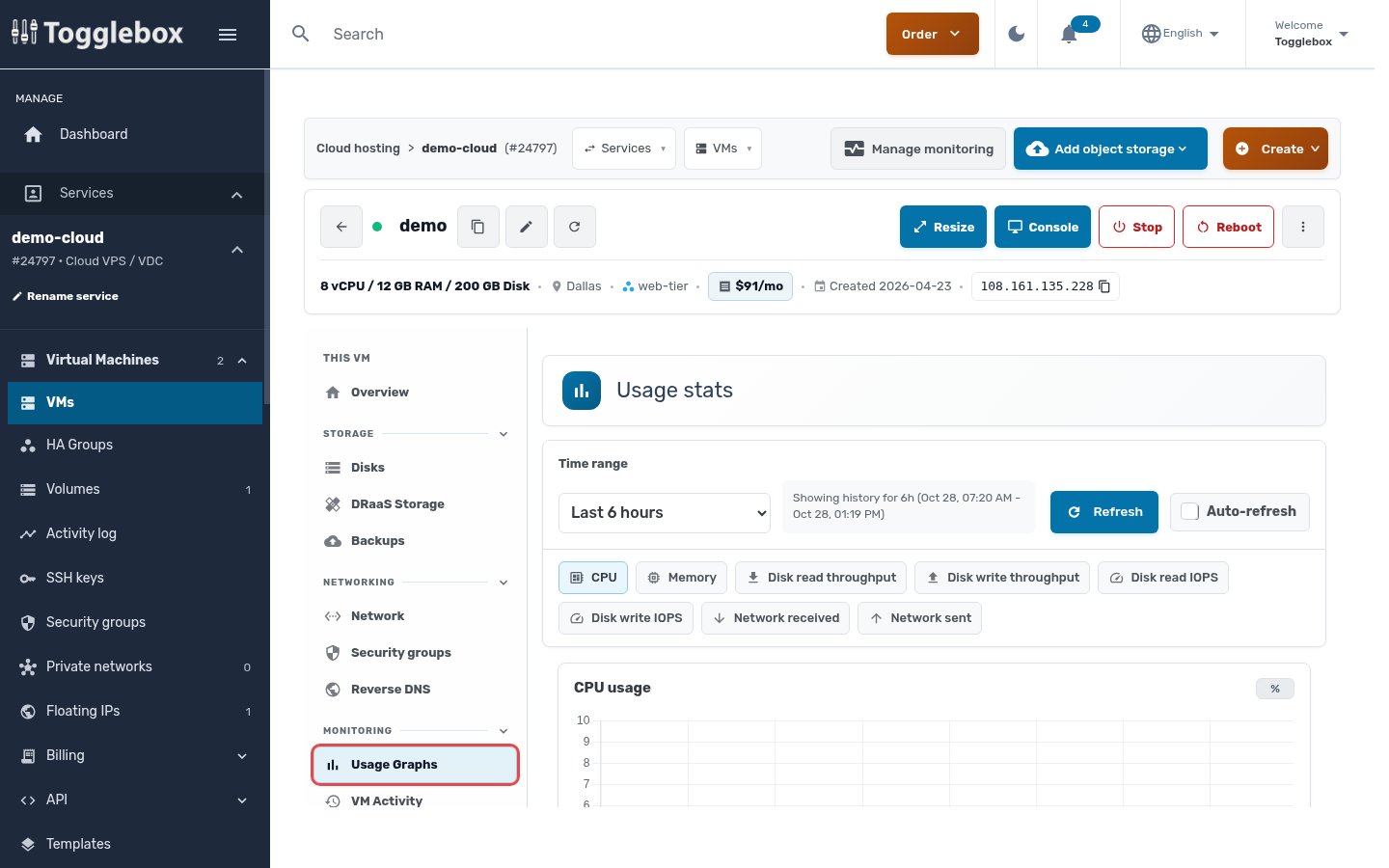
- Choose a Time range, from Last hour to Last 90 days. Check the dates shown beside the selector.
- Use the metric buttons to find the graph you need. CPU usage is shown in %, memory in MB, disk throughput and network traffic in MB/s, and disk operations in IOPS.
- Click Refresh to update the view.
If you contact support about a performance problem, include the VM name, the time of the problem with its timezone, and a screenshot of the relevant graph.
See the Cloud VPS control panel overview for help finding your service.