Find the recorded details of an action on your Cloud VPS service.
- Open your Cloud VPS service and click Activity log in the service sidebar.
- Choose the VM or volume in Resource. Leave All resources selected to include service-wide actions.
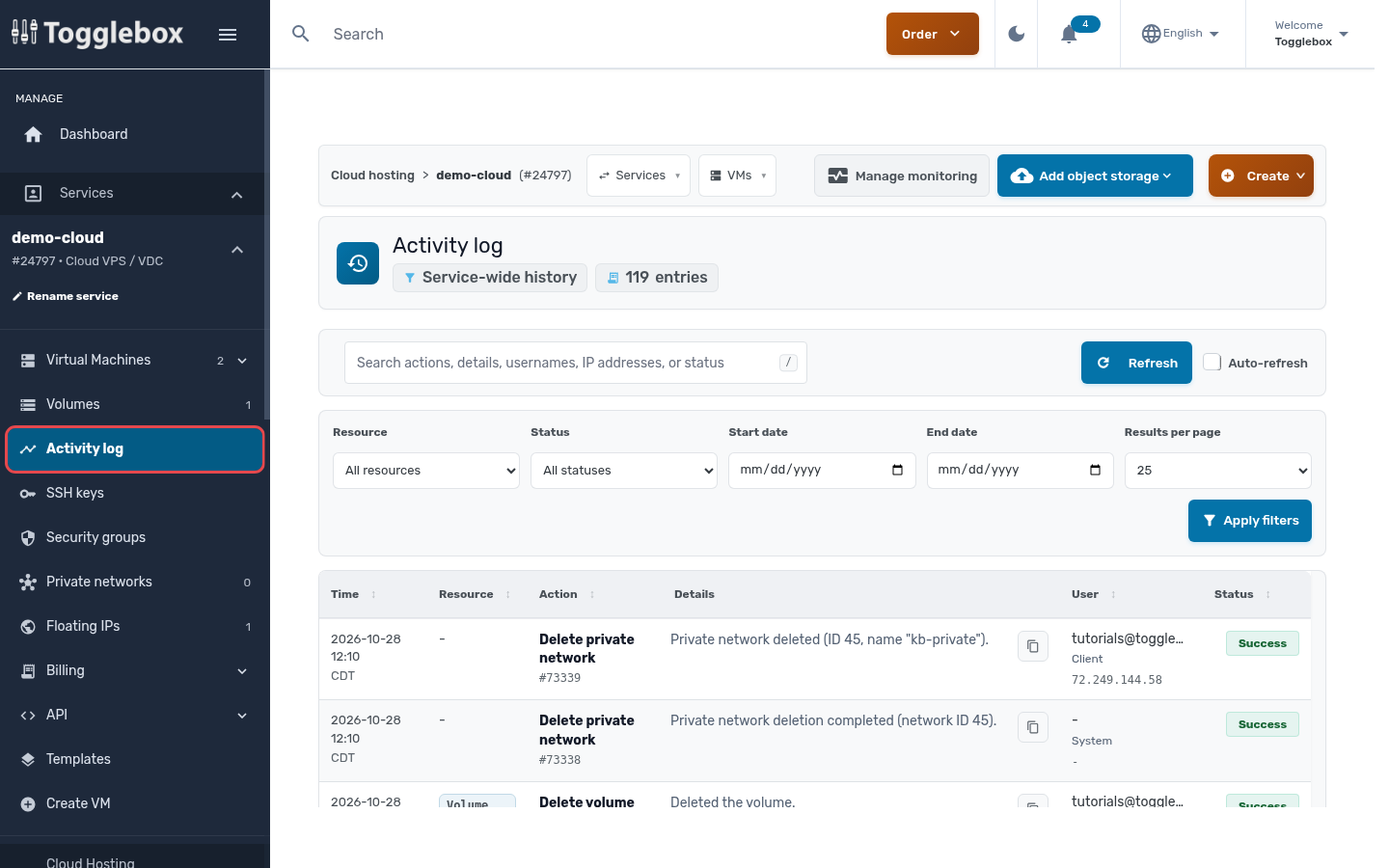
- Narrow the results with Status, Start date and End date, then click Apply filters.
- Read the matching row’s Time, Action, Details and Status. Note the timezone displayed under the time.
- When asking support about an action, include the number under Action, the VM or volume ID, and the text under Details.
You can also open a VM and select VM Activity from its monitoring menu.
See the Cloud VPS control panel overview for help finding your service.