This needs the contextualization service inside the VM. Our templates include it. If you imported the VM or installed it from your own ISO, see Install the contextualization service.
The panel generates a new password for you. You can't type your own here, but you can change it inside the VM afterwards.
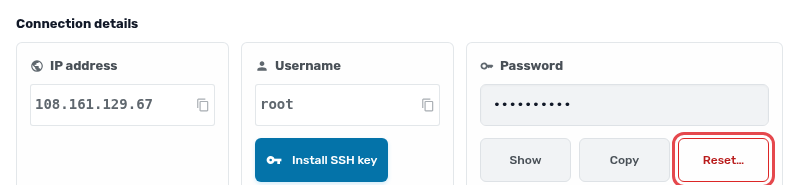
- Open the VM. The Overview page shows Connection details.
- Under Password, click Reset….
- Confirm when asked: "Reset the password for this VM? A new password replaces the current one."
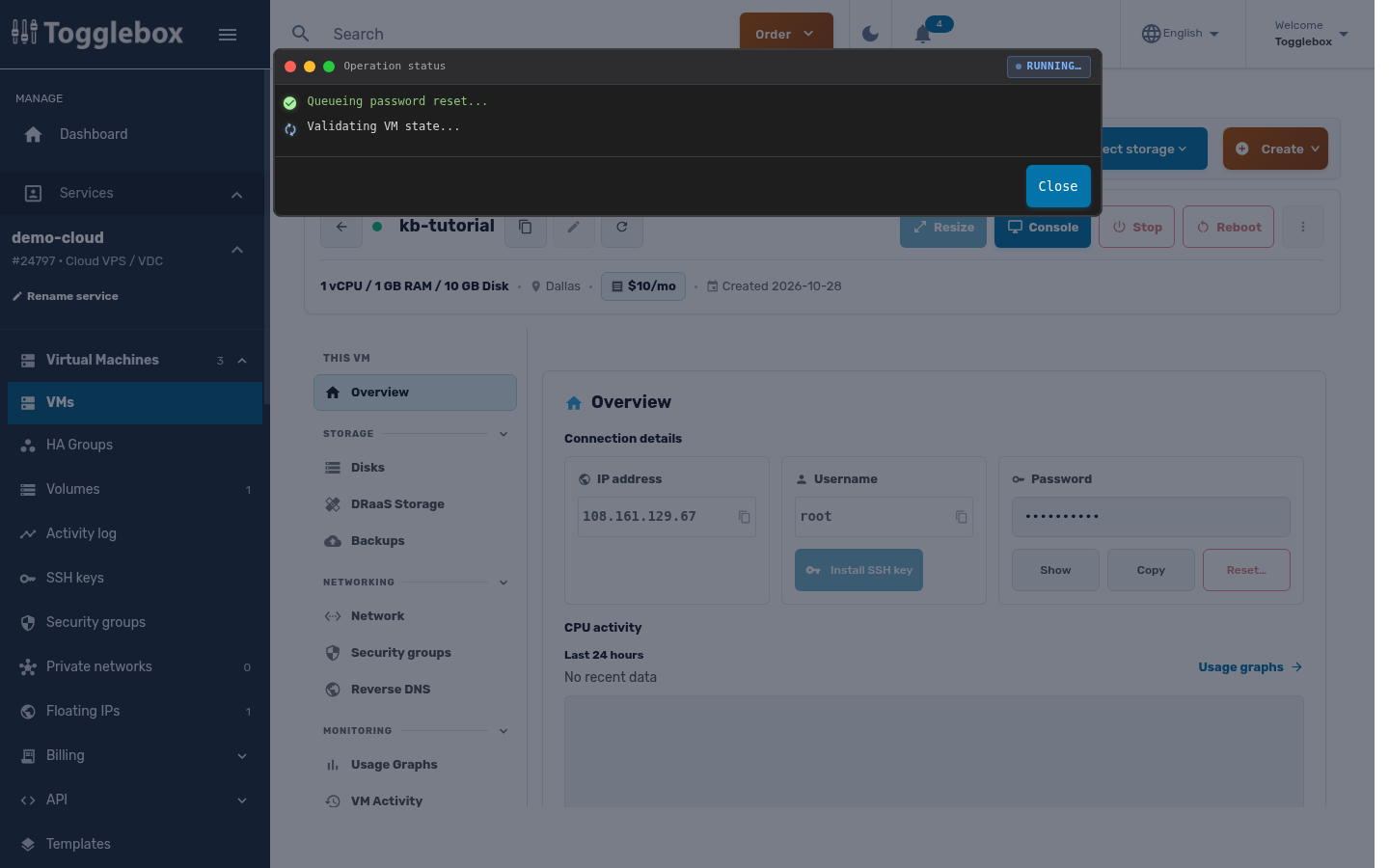
- Wait for the operation status window to finish. The VM must be running, and the reset takes about a minute.
- Click Show or Copy to get the new password.
Log in with the username shown next to the password. Password resets are refused while the VM is in Rescue Mode.